SafecomLink V12 is here!
- SafecomLink

- Jul 18, 2025
- 9 min read
With Bi directional Email gateway, Easy SafecomLink Cluster settings, Email Alerts, Faster Calling frequency clearance, shorter frequency change invites, Verbose GPS, and much more!
Hello SafecomLinkers!
As some of you may already know, we released Version 11.4 about a month ago in response to a critical Microsoft bug that was rapidly impacting many users. Due to the urgency of the situation, this was a rushed release—unlike our usual process, we had to skip several steps in our typical launch sequence and weren’t able to properly introduce the new features with our usual fanfare.
Now that the Microsoft issue has been contained, we’re getting back on track. To make up for the missed announcements of V11.4, we’re excited to roll out Version 12, and this time we’re combining the highlights of both V11.4 and V12 into a single comprehensive update.
Some of you may have already experienced parts of what’s new—but now it’s time to dive in and give everything the attention it deserves.
Let’s start with the BIG news in V12:
📢 Introducing: Bi-Directional SafecomLink Email Gateway
Yes—it’s finally here!
From day one, our vision for the SafecomLink Email Gateway was always bi-directional—but we knew we had to take it one step at a time. With V12, we’re proud to say: the loop is now fully closed.
SafecomLink now empowers every user to operate their own bi-directional Email Gateway, allowing your station to seamlessly:
Forward SafeMails from HF to Email, and
Receive Emails and route them back into HF as SafeMails.
This milestone was made possible by integrating not only with SMTP (which we've used until now for sending emails), but now also with IMAP. In simple terms, SafecomLink can now retrieve new emails from your inbox, convert them into SafecomLink SafeMails, and place them as "Parked/Outgoing" messages in your SafeMailBox, ready to be transmitted over HF.
And yes—this works even with free email providers like Gmail (with proper setup). The gateway just became truly complete.
Here’s how it works:
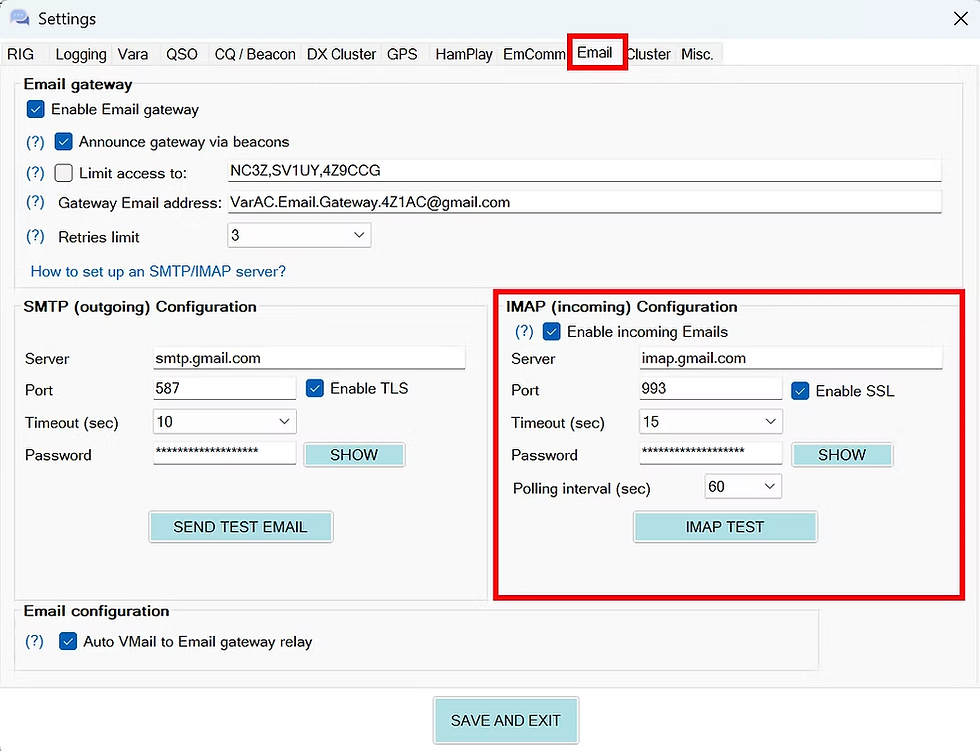
STEP 1: Configuring IMAP:
Start by configuring your SafeMail Gateway to interact with your email account via IMAP. This can be done under the Gateway Settings tab.
Use the TEST button to verify both IMAP and SMTP connectivity.
Note: For services like Gmail, make sure to use the same “app password” for both SMTP (sending) and IMAP (receiving).
This step ensures that your SafecomLink station can not only send emails, but also fetch incoming ones and convert them into SafeMails for HF transmission.
Configuring IMAP in your Email gateway
Step 2: Choose Your Preferred Reply-To Method
When a station sends an email through a connected gateway, they now have the flexibility to choose how replies are handled:
Reply via Email – The response will be delivered directly to their external email inbox (outside the SafecomLink network).
Reply via SafecomLink Gateway – The response will be sent back to the gateway, where it will be converted into a SafeMail and made available for pickup via HF.
This gives the sender full control over how and where they want to receive replies—whether through traditional email or directly back into the SafecomLink ecosystem.
Setting a preferred reply-to method

STEP 3: The Redirection Mechanism
When a SafeMail is redirected to an external email, SafecomLink automatically appends a special tag at the bottom of the message:<RELAY_TO_CALLSIGN:XXXX>
This tag allows SafecomLink to track and route replies back to the correct operator.
Here’s how it works:
When the email recipient replies, the message lands in the gateway’s email inbox.
SafecomLink periodically scans the inbox, looking for emails that contain the <RELAY_TO_CALLSIGN:XXXX> tag.
If the tag is found, SafecomLink AC converts the reply into a parked SafeMail inside the SafeMailBoxof the specified callsign.
This triggers a SafeMail relay notification, so the next time that callsign beacons, they’ll be notified of a new incoming SafeMail—even though it originally came from an email reply.
This smart tagging system closes the loop, enabling smooth and traceable communication between HF and the outside email world.

Fun Fact: "Live Email Gateway Chat"
If you send an email through a gateway and stay connected, and the recipient replies promptly—you’ll receive their reply live while still on the same active link!
We call this use case “Live Email Gateway Chat” — a clever way to carry out a near real-time conversation via the SafeMail → Email → SafeMail pipeline. It’s not quite instant messaging, but it comes impressively close, especially over HF.
Now, speaking of gateways…
We’ve taken our new email infrastructure a step further and integrated it with SafecomLink Alert Tags system. The result is:
📢 Introducing: Email alerts
Alert Tags have been around for a while—allowing you to monitor for events like a HandRaise or Beacon or specific Callsign, Matching a keyword in a Broadcast or a chat etc.
But now there’s something new: You can configure these alerts to trigger an email notification in addition to appearing in the SafecomLink Alert Center.
So even if you're away from your radio, you can still get instant updates right to your inbox—keeping you connected to the bands that matter to you, anytime, anywhere.
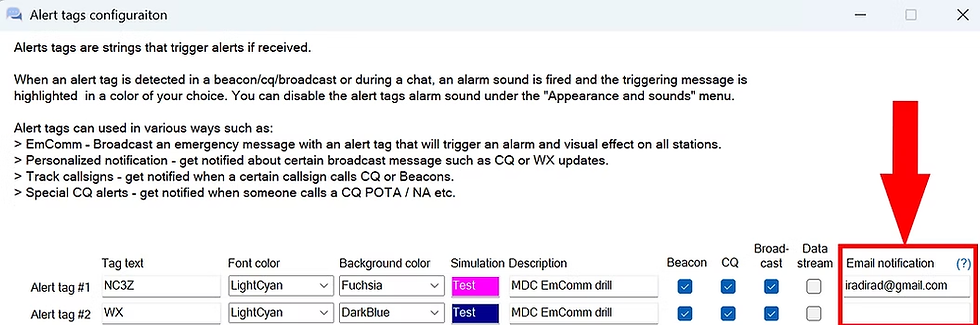
And here’s a bonus: now that we support a bi-directional email gateway, any reply to an email alert will be forwarded back through the gateway to the station that triggered the alert. This is possible because SafecomLink includes the <RELAY_TO_CALLSIGN:XXX> tag in email alerts as well.
Alright, enough about gateways—let’s shift gears to something equally important: clearing the calling frequency ASAP!
Until now, when you connected with a beaconing station on the calling frequency, both sides exchanged callsigns and SNR reports before sending a frequency change invitation.
That’s no longer the case.
📢 Introducing: Post-frequency change Call-ID/SNR exchange
In V12, we’ve changed the timing of exchanging call ID and SNR data—this exchange now happens only after the frequency change (frequency change) takes place. This means there will be minimal traffic between two stations on the calling frequency until a frequency change is initiated.
Our measurements show that with this approach, the frequency change process now takes about 10-15 seconds from connection—compared to 30-40 seconds under the previous method. This improvement significantly enhances our ability to share the calling frequency with fewer collisions and less congestion.
The only data exchanged on the calling frequency before frequency change will be:
<AWQ> — indicating “I am away but allowing auto-frequency change ”
<Q> — (new tag) indicating “I am here and allowing auto-frequency change”
Please note: If auto-frequency change is disabled, the system will revert to the current behavior—exchanging Call-ID and SNR on the calling frequency as before.

Now, let’s talk about the SafecomLink Cluster, one of the most powerful features in the SafecomLink architecture.
A SafecomLink Cluster consists of multiple SafecomLink instances operating simultaneously on different bands, all connected to a centralized database (the “Brain”). This unique setup enables advanced cross-band operations, such as cross-band SafeMail exchange and, more recently, cross-band Email Gateway support.
Until now, setting up a cluster required manually editing the SafecomLink INI file, which could be complex and error-prone.
📢 Introducing: Easy Multi-node Cluster setup
With V12, all SafecomLink cluster parameters are now accessible through a dedicated Multi-Node Cluster section in the settings.

Now, let’s jump to our SafecomLink-on-the-go enthusiasts. You all love using GPS, right? So why not bring the same detail and feedback from our Verbose SNR feature to GPS?
📢 Introducing: Verbose GPS mode
If your SafecomLink is connected to a GPS device, a new “Verbose GPS” checkbox will appear on your main screen. Enable it during a LiveLink, and SafecomLink will start sending your GPS location every minute.

Now, let’s switch safety to “auto” mode and dive into a series of exciting new features coming your way:
Secondary Logger Support: Log your LiveLinks to two logging applications simultaneously for greater flexibility and backup.
SafecomLink Database Checker: A new advanced tool to inspect your SafecomLink .db for any missing or corrupted elements. (A fixer tool will be introduced in the next version.)
File Safety Alerts: Get warned before opening potentially dangerous files (such as .bat or .exe) to keep your system safe.
Narration Sound Customization: A new setting lets you enable or disable narration sounds for your transmitted beacons, tailoring the experience to your preference.
Callsign History & QRZ Lookup: Added handy ‘Callsign History’ and ‘QRZ Lookup’ buttons to the read SafeMail form for quick callsign information on incoming SafeMails.
SafecomLink Cluster Node Number in Logs: When operating in cluster mode, each log entry now includes the cluster node number, so you always know which node generated each entry.
Consistent Date-Time Format for Gateway SafeMails: The “compose time” field in gateway SafeMails now uses your selected date-time format for better consistency.
Cluster Beacon/HandRaise Filtering: In a SafecomLink cluster, each instance now loads only its own last-heard Beacons and HandRaises, reducing clutter and improving relevance.
Improved TO Dropdown Field: The TO dropdown when composing a new SafeMail has been extended to better display long callsigns and email addresses, enhancing visibility.
Path-Finder Auto Request: When you type your callsign and press Enter, the Path-Finder request is sent automatically, streamlining your workflow.
Instant Connect by Callsign Entry: Pressing Enter after typing a callsign or after selecting one from the dropdown will immediately initiate a connection.
Advanced Beacon Contact Logging: When sending an advanced beacon with a locator, the contact is saved to SafecomLink.db to retain the last known locator if the station reverts to a standard beacon.
Disable Antenna Tuner When PTT Off: The antenna tuner will no longer activate when changing frequencies if PTT is disabled.
HandRaise and frequency change Popups Brought to Front: These popups are now forced to the foreground to ensure visibility.
Unread SafeMail Always Visible: Unread messages will appear regardless of the date filter applied in the SafeMailBox.
Visual Gestures for Reading Messages: Added gesture animations when reading SafeMails and broadcasts.
No Chat History Notification: You’ll be notified in the datastream if you connect to a station with no previous chat history.
Faster Chat History Load: Optimized loading of old chat history to minimize UI freeze.
Faster Main Screen Load: Improved speed when loading historical data from the database.
Advanced Beacon Warning with Digipeaters: Clear message shown when enabling advanced beacons on VaraFM with digipeaters, which are not supported.
Manual Log Saves to SafecomLink.db: Clicking "LOG" manually now logs the LiveLink to the internal SafecomLink database as well as the ADIF file.
Locator Format Validation: Incoming locator data (beacons/HandRaise/LiveLink/Contacts) is validated before being written to the database.
Improved Digipeater Narration: When reading beacons/HandRaises relayed via digipeaters, "Via" is pronounced properly, and "-" in SSID is narrated as "Dash."
More Gesture Trigger Words: Added additional trigger words like "HIHI" to visual gestures.
File Safety Alerts: Alerts now warn before opening potentially dangerous files (e.g., .bat, .exe).
Canned SafeMail Subject Tag: Use <SBJ:XXX> in canned messages to predefine the SafeMail subject.
Canned SafeMail Email Tag: Use <EM:XXX> in canned messages to predefine the recipient’s email address.
Narration Sound Customization: New setting to enable/disable narration sounds for your transmitted beacons.
KISS Debug Mode: Added display of raw KISS packet data for debugging purposes.
External Link Warning: Users are notified before a link is opened in an external browser.
----
Bug Fixes:
Empty tags were sent if your profile lacked name, QTH, or email.
“Reply To” help text in the SafeMail form wasn’t translated.
Minimum sizes set for SafeMail window and callsign history panel to prevent layout issues.
Accepting a frequency change invite with an active antenna tuner caused double activation.
Email gateway now validates addresses to prevent failures with invalid emails.
Removed popup when enabling gateway announcements in settings.
Fixed logging errors opening callsign history on first load.
Beaconing on Away mode failed if unattended connections were disabled.
Prevented packets from endlessly bouncing between two VaraFM digipeaters.
“Connection idle time exceeded” messages during file transfers no longer appear unnecessarily.
Fixed layout bugs in Simple UI mode at 175%+ screen scaling.
Broadcast size limits now enforced for long canned messages.
Welcome message now sends correctly when pinging then connecting immediately.
Pings now log SNR values in the LiveLink Log.
Resolved inability to resend email via “Relay now” after a rejection without disconnecting.
Frequencies above 1 GHz are now processed correctly without errors.
Suppressed irrelevant log warnings for SafeMails without creation time or unrelated timestamps.
Safety checks for links extended to Datastream and broadcasts.
Added missing info for “exchange call ID & SNR after frequency change in LiveLink setting.
Prevented sending SafeMails with empty “TO CALLSIGN.”
Fixed empty compose time on some gateway SafeMails.
Resolved startup error caused by resizing autofill columns.
Reduced false “Idle time exceeded” alerts during long data sends.
Corrected narration error about SafeMail relays and frequency change .
Path finder requests with lowercase callsigns now respond properly.
Prevented multiple sends when editing SafeMails mid-transmission.